Getting Started
Quotations
Quotation management
Quotations
In the context of customer relationship management (CRM), quotations are usually formal offers or estimates given to potential customers that include the products or services offered and their prices.
These quotations serve as documented offers, detailing the terms and conditions of a potential sale. They often include an itemized list of products or services, quantities, prices, payment terms, and any discounts or taxes.
Create a quote
Step 1: Log in to the admin interface, then click on Quotes > New Quote:

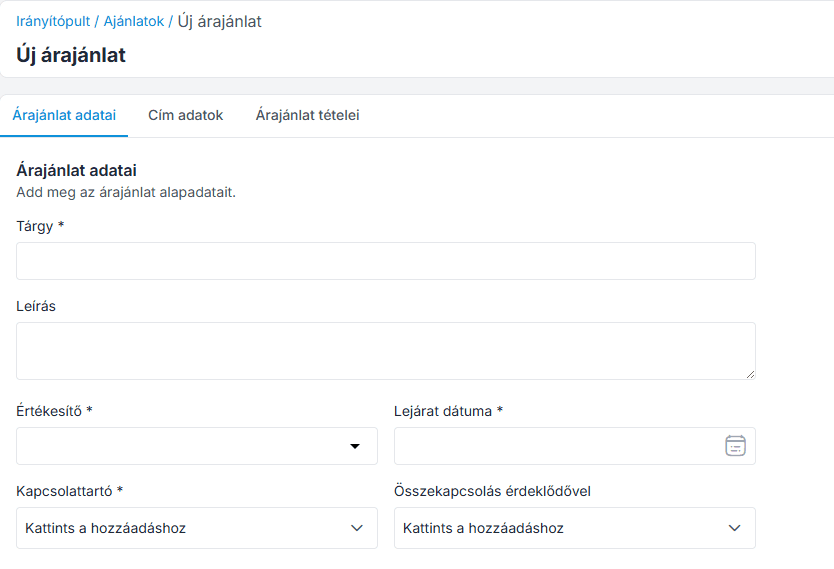
Step 2: Enter the following quote information.
Subject – Specify the subject of the quote.
Description – Enter a detailed description of the quote.
Salesperson – Select the person responsible for sales.
Expiration date – Enter the date when the quote expires.
Contact person – Enter the name of the user to whom you are sending the quote.
Connect with interested parties – Enter the lead's name.
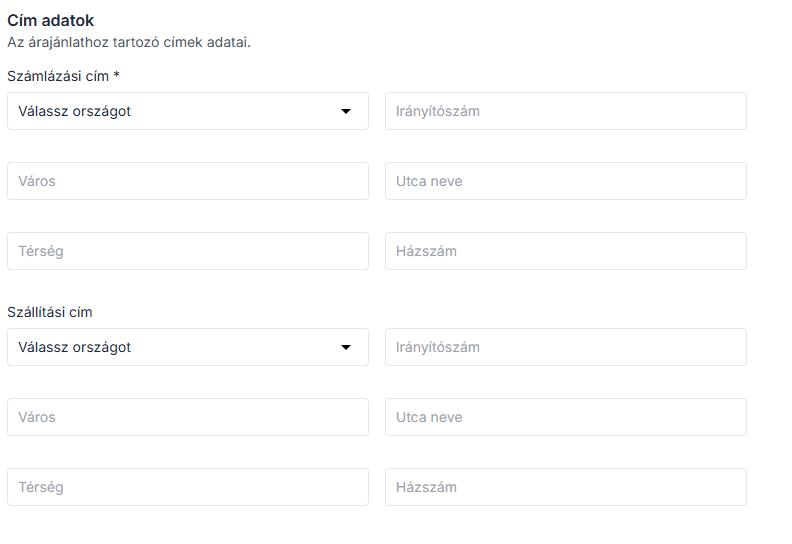
Step 3: Enter the following address details.
Billing Address – Enter the country, state/province, city, and postal code for your billing address.
Shipping Address – Enter the country, state/province, city, and postal code of the shipping address.
Step 4: Enter the details of the following quotation items.
Product name – Enter the name of the product.
Quantity – Enter the quantity of the product.
Price – Enter the price of the product.
Amount – Enter the amount for the product.
Discount – Enter the discount if you want to apply a discount to the products.
Tax – Enter the tax, if applicable.
Total – The total amount for all products.
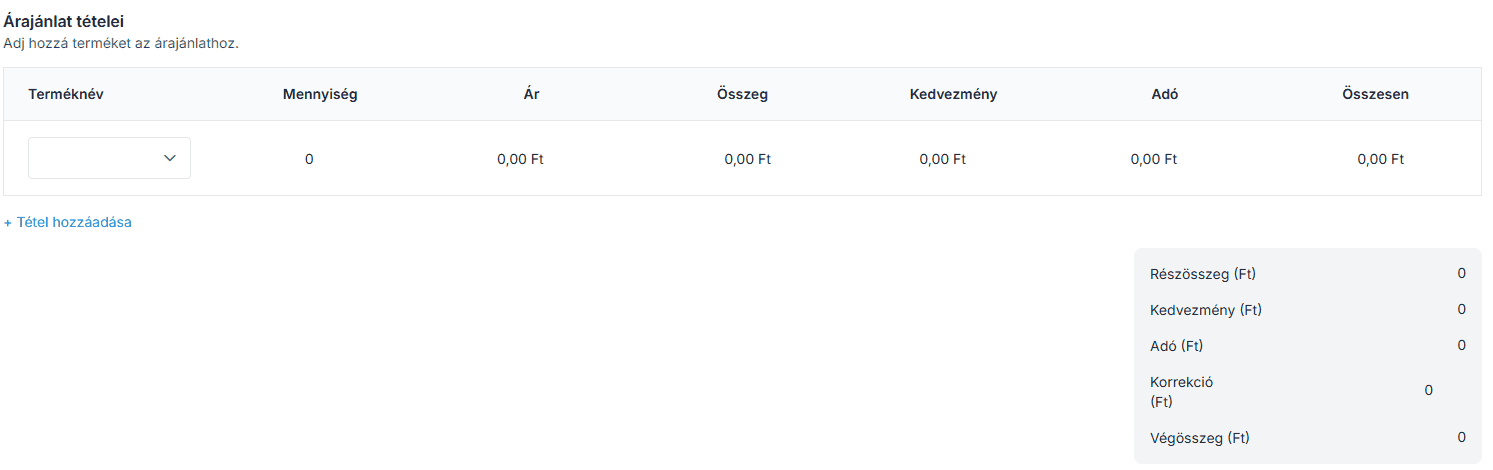
Note: If you want to add more products, click on the +Add item link.
Step 5: You will then see that the new quote has been successfully saved.
The following example shows a quote that has already been saved:
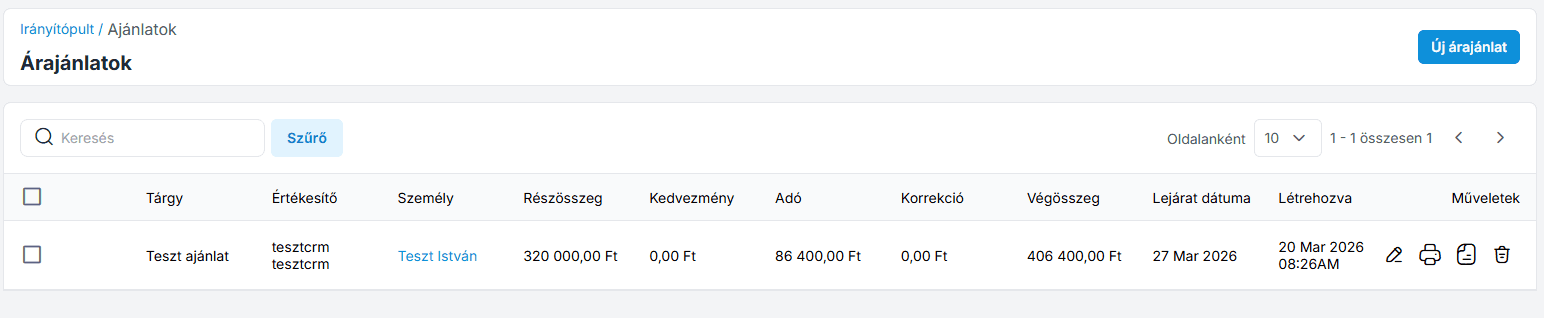
On the right side, under "Actions," we have the following options:
Edit Quote - Click this icon to edit the quote
Print (download) quote as PDF - Click this icon to save the quote as a PDF
Issue an invoice from a quote - Click this icon to issue an invoice from a quote
Cancel quote - Click this icon to cancel the quote
Issuing an invoice based on a quote
When you click this icon, the system will ask if you really want to perform this action.
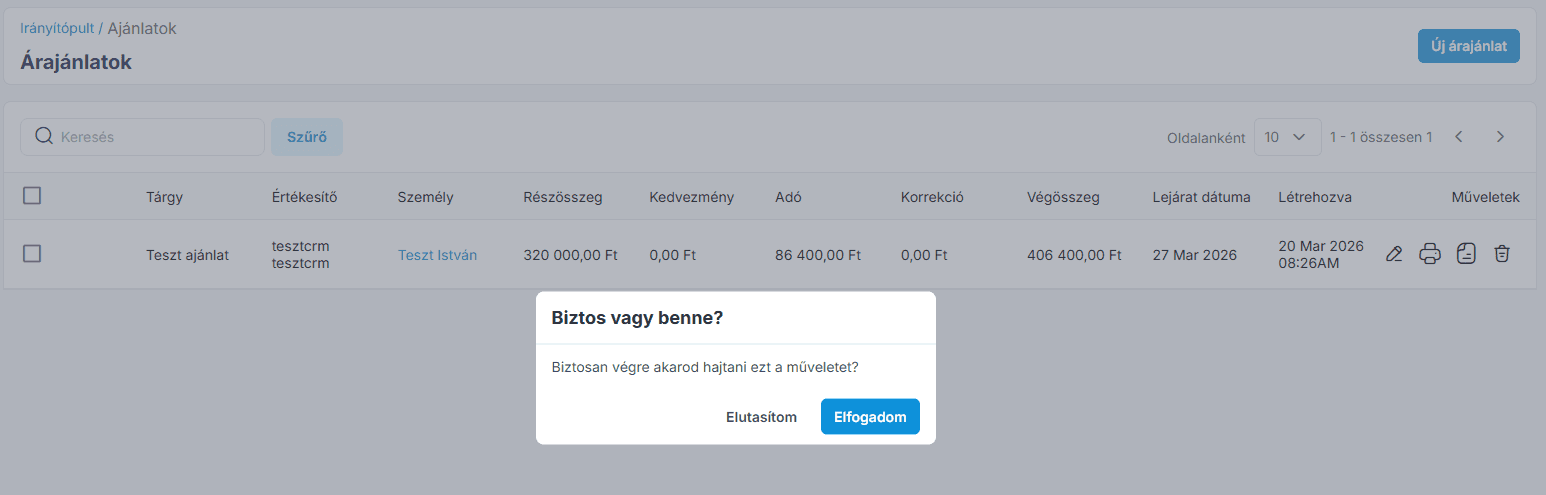
When you click the "Accept" button—provided all the information has been entered correctly—the system will generate the invoice, and the quote will be added to the Invoices list.

Learn more: Invoices
Join our Community Forum
Any other questions? Get in touch