Getting Started
Contacts
Managing Contacts
Contacts generally refer to individuals or organizations with whom the business has a relationship or wishes to establish one. These may include existing customers, potential leads, partners, suppliers, or other parties relevant to the business’s operations.
Person
This refers to an individual who may be a customer, a lead, an inquiry, or any other person with whom the business has a relationship or wishes to establish a relationship.
Create a user
Step: Go to the CRM system's admin interface, then click on the Contacts → Persons → New Person menu item , as shown in the image below.

Step: Enter the following information:
Name – Enter the person's name
Email addresses – Enter the person’s email address; you can select whether it’s a work or personal email address from the drop-down list
Phone number – Enter your contact information; you can choose between a work or personal phone number
Position – Enter the person's job title
Sales Representative – Enter the sales representative
Organization – Enter the name of the organization
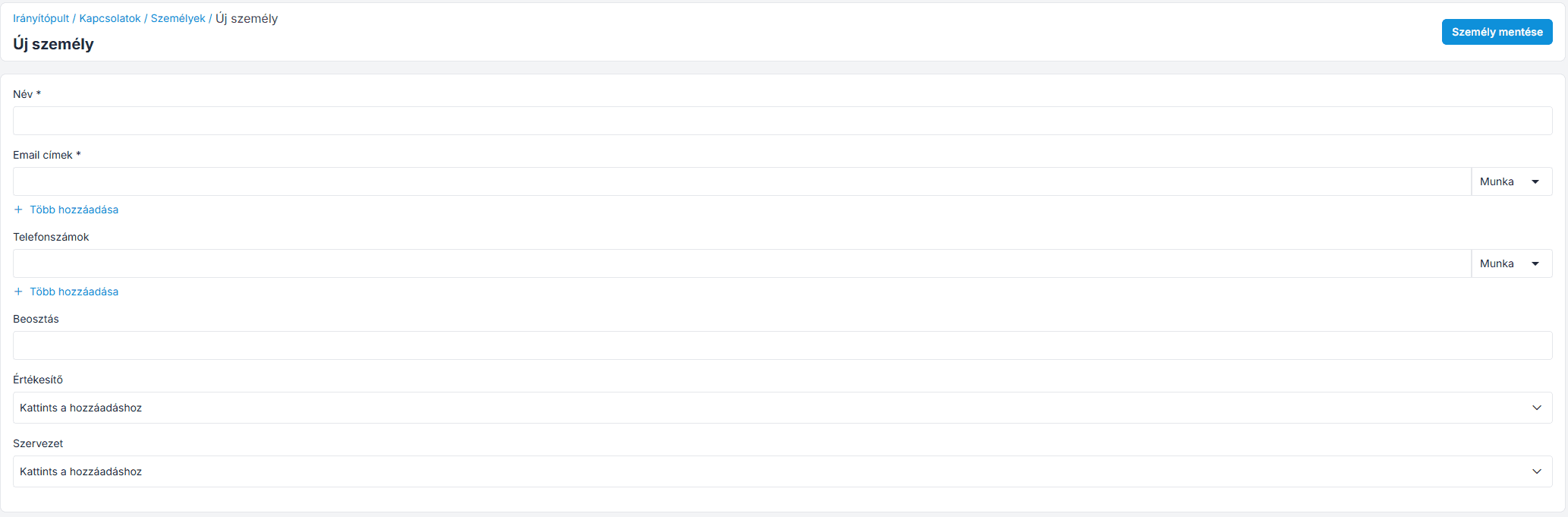
Now click the " Save Contact " button to create the contact's information.
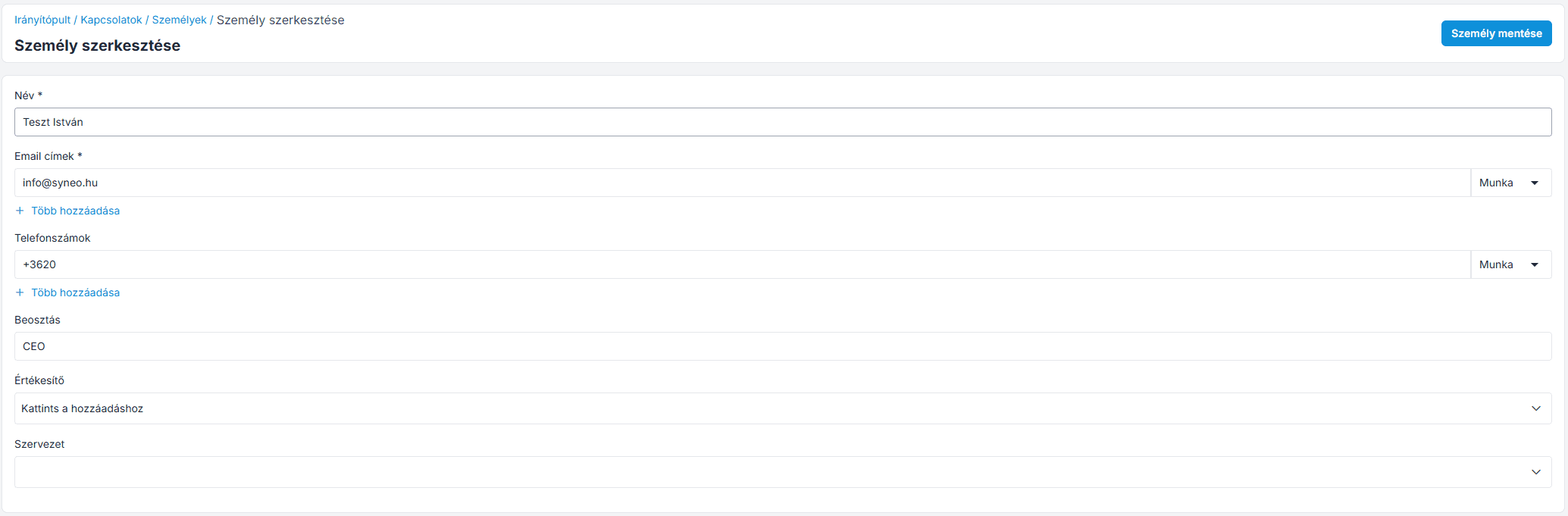
Edit or delete a person
Use the " Actions " tab to edit or delete the contact, as shown in the figure.
Filters by person
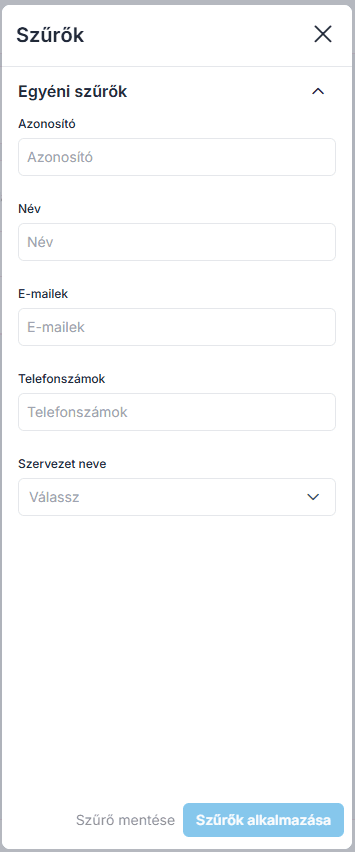
You can use the " Filter " tab here to find the person you're looking for.
By default, the following filters are available, as shown in the image below:
Identification Number (ID)
Name
Email addresses
Phone numbers
Organization Name
Organizations
An "organization" generally refers to a company, business, or other entity with which a CRM user has a relationship or wishes to establish a relationship. Organizations may include customers, partners, suppliers, or any other parties relevant to the company's operations.
This could be a commercial enterprise, a nonprofit organization, a government agency, or any other entity that manages customer relationships.
Creating an organization in the CRM system
Step: Go to the CRM admin interface, then click on the Contacts → Organizations → New Organization menu item, as shown in the image below.

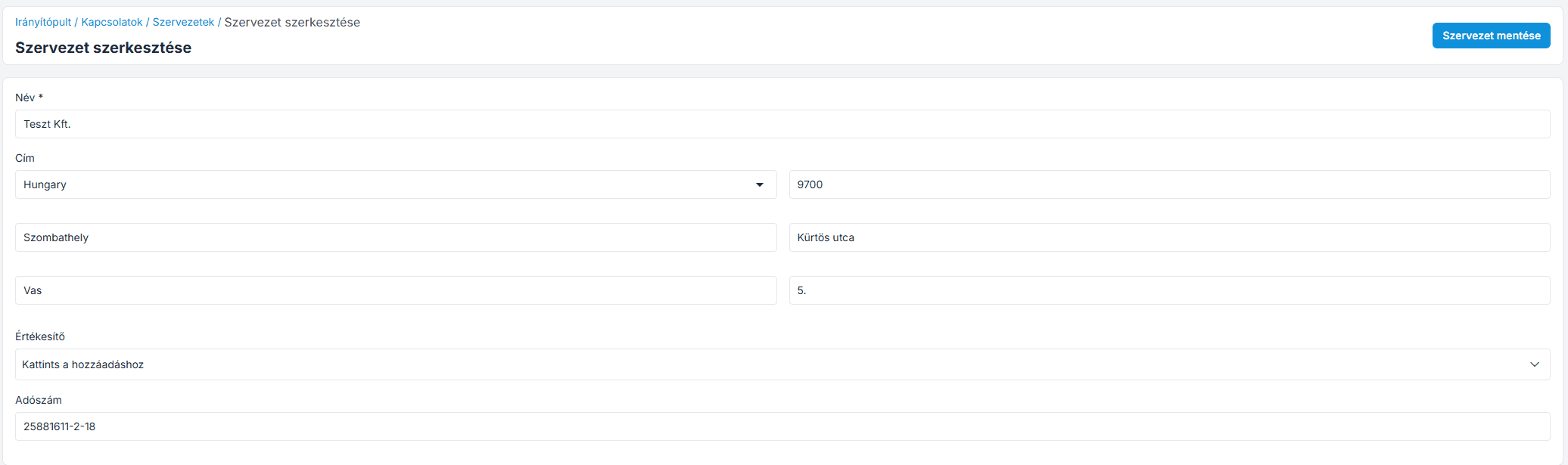
Step: Briefly provide the following information:
Name – Enter the name of the organization
Address – Enter the organization’s address (country, state/province, city, ZIP code)
Sales Representative – Enter the sales representative
Tax ID - Enter the organization's tax ID. (This is important for invoicing!)
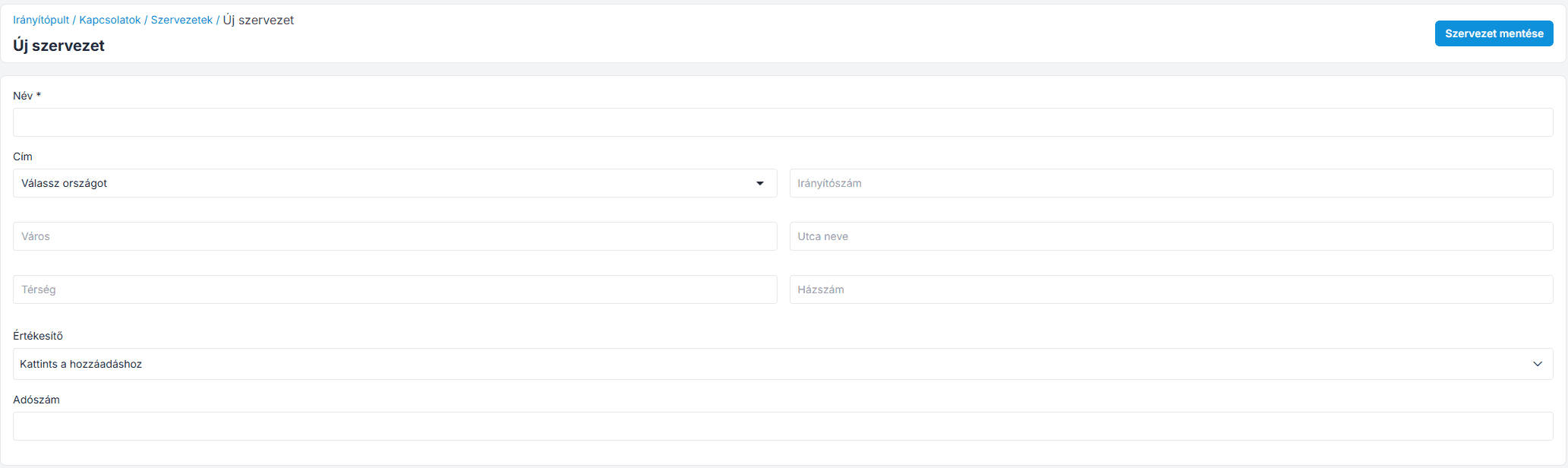
Then click the " Save Organization " button, and the person's information will be saved.
Edit or delete an organization
Use the " Actions " tab to edit or delete the organization, as shown in the figure.
Filters for organizations
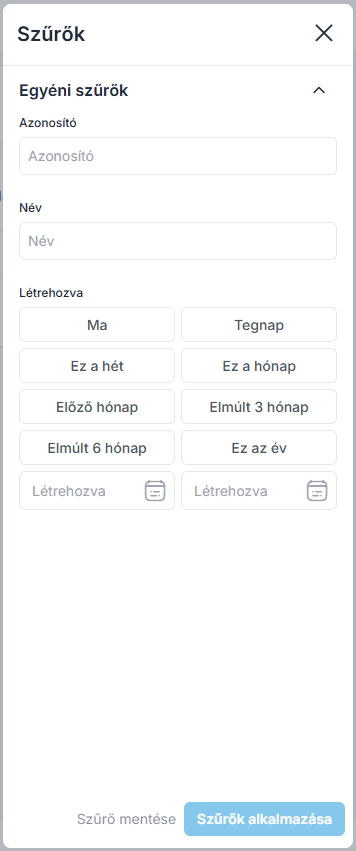
You can use the " Filter " tab here to find the organization you're looking for.
By default, the following filters are available, as shown in the image below:
Identification Number (ID)
Name
Date created
Join our Community Forum
Any other questions? Get in touch